# คู่มือการย้ายอีเมลระบบเก่าไปยัง Microsoft 365

# วิธีเชื่อมต่ออีเมล Domain @wu.ac.th ด้วย Outlook (classic)

<div id="bkmrk-%E0%B8%AA%E0%B8%B4%E0%B9%88%E0%B8%87%E0%B8%97%E0%B8%B5%E0%B9%88%E0%B8%95%E0%B9%89%E0%B8%AD%E0%B8%87%E0%B9%80%E0%B8%95%E0%B8%A3%E0%B8%B5%E0%B8%A2%E0%B8%A1-%C2%A0-"></div><div id="bkmrk-"></div><p class="callout info">สิ่งที่ต้องเตรียม  
 - บัญชีผู้ใช้จากระบบ email.wu.ac.th (อีเมลองค์กรปัจจุบัน)  
 - โปรแกรม Outlook (classic) (แนะนำใช้ Outlook 2016 ขึ้นไป)</p>

การใช้งานโปรแกรม Outlook สามารถทำได้หลากหลายวิธี ทั้งนี้เพื่อความสะดวกในการใช้งานทั่วไป คู่มือนี้จะแนะนำ 2 วิธีหลักที่ผู้ใช้งานสามารถเลือกใช้ได้ตามความเหมาะสม ดังนี้

- - - - **วิธีที่ 1 สำหรับโปรแกรม Outlook (classic)**
            - **วิธีที่ 2 การใช้งานสำหรับผู้ที่มีบัญชีอีเมลอื่นอยู่แล้วในระบบ Outlook**

---

##### **วิธีที่ 1 ผ่านโปรแกรม Outlook (classic)**

  
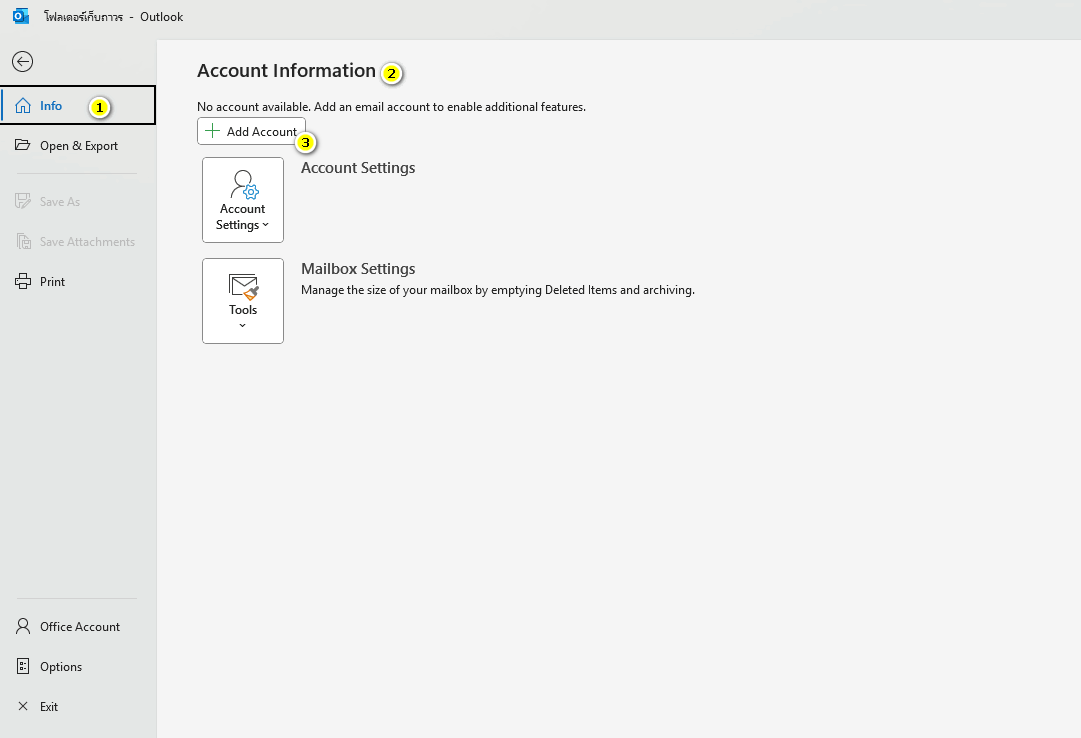
เปิดโปรแกรม Outlook (classic)

[![image.png](https://bookstack.wu.ac.th/uploads/images/gallery/2025-07/scaled-1680-/image.png)](https://bookstack.wu.ac.th/uploads/images/gallery/2025-07/image.png)
- ไปที่ File &gt; Info &gt;Account Settings &gt; Account Information &gt; เลือก Add Account


<p class="callout warning">\*\*\* หากไม่มีเมนู File ให้สังเกตมุมขวาบน เลือกแถบปิด New Outlook  
  
[![image.png](https://bookstack.wu.ac.th/uploads/images/gallery/2025-07/scaled-1680-/bJ7image.png)](https://bookstack.wu.ac.th/uploads/images/gallery/2025-07/bJ7image.png)</p>

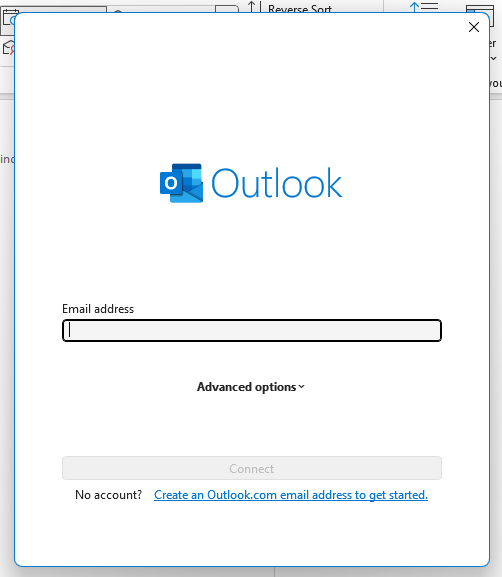
[![f43image.png](https://bookstack.wu.ac.th/uploads/images/gallery/2025-07/scaled-1680-/5Xsf43image.png)](https://bookstack.wu.ac.th/uploads/images/gallery/2025-07/5Xsf43image.png)


- ใส่ Email, Password ของบัญชีปัจจุบันของมหาลัยวิทยาลัย แล้วกด Connect

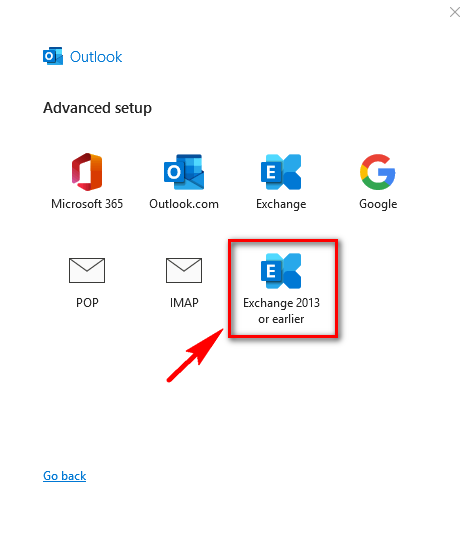
<p class="callout warning align-left">\*\*\* ถ้ามีหน้าต่างแสดงลักษณะนี้ ให้เลือกเป็น Exchange 2013 or earlier  
  
[![image.png](https://bookstack.wu.ac.th/uploads/images/gallery/2025-07/scaled-1680-/PTpimage.png)](https://bookstack.wu.ac.th/uploads/images/gallery/2025-07/PTpimage.png)</p>
[![kZ2image.png](https://bookstack.wu.ac.th/uploads/images/gallery/2025-07/scaled-1680-/VSxkz2image.png)](https://bookstack.wu.ac.th/uploads/images/gallery/2025-07/VSxkz2image.png)

<p class="callout success">หากเชื่อมต่อสำเร็จ จะเห็นอีเมลโหลดเข้ามาใน Microsoft Outlook</p>

---

##### **วิธีที่ 2 การใช้งานสำหรับผู้ที่มีบัญชีอีเมลอื่นอยู่แล้วในระบบ Outlook**   


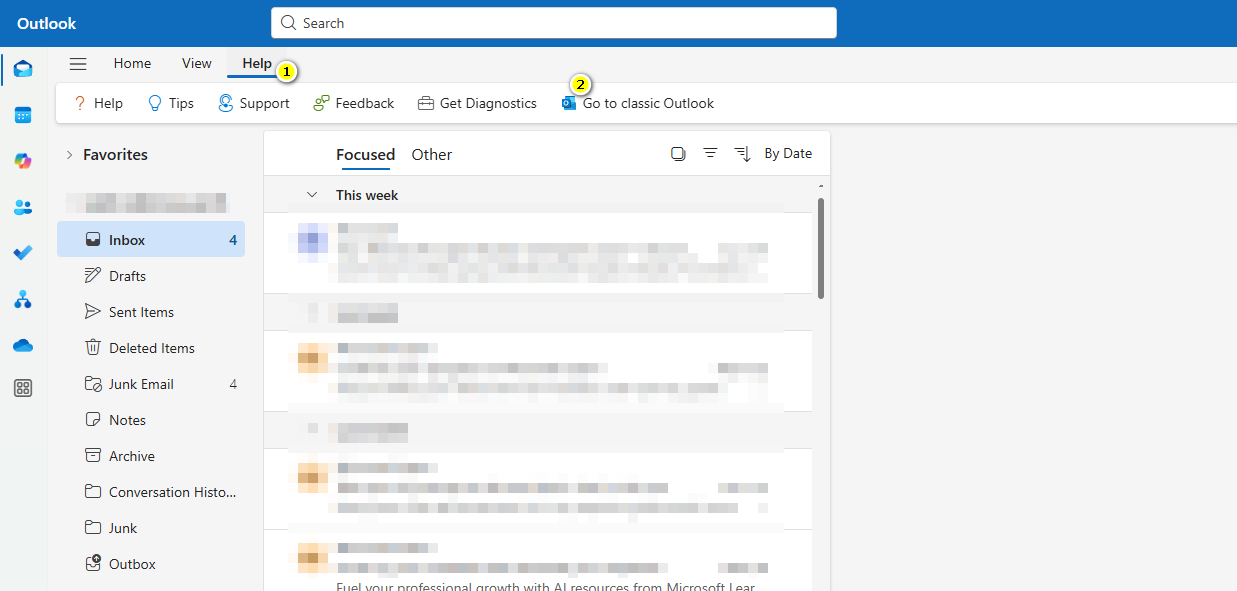
- ไปที่เมนู Help -&gt; เลือก Go to classic Outlook

[![image.png](https://bookstack.wu.ac.th/uploads/images/gallery/2025-08/scaled-1680-/F6Iimage.png)](https://bookstack.wu.ac.th/uploads/images/gallery/2025-08/F6Iimage.png)

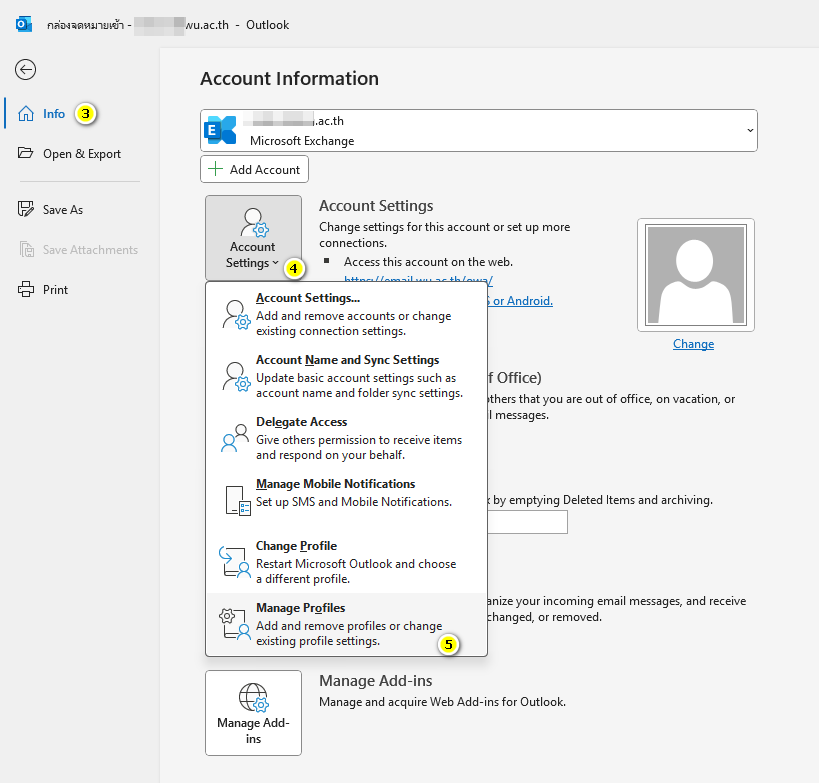
โปรแกรมจะนำไปยัง **Outlook (classic)** โดยสังเกตที่เมนูด้านบนลักษณะเดียวกับในรูปด้านล่าง

[![image.png](https://bookstack.wu.ac.th/uploads/images/gallery/2025-08/scaled-1680-/LJ5image.png)](https://bookstack.wu.ac.th/uploads/images/gallery/2025-08/LJ5image.png)



- ไปที่ File &gt; Info &gt; Account Settings &gt; เลือก Manage Profiles

![image.png](https://bookstack.wu.ac.th/uploads/images/gallery/2025-08/scaled-1680-/IhQimage.png)

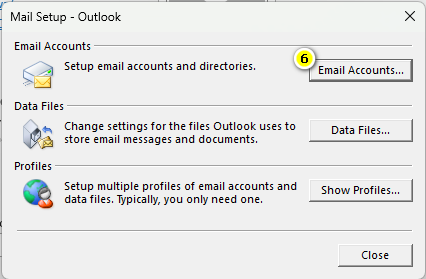
- จะปรากฏหน้าต่างดังรูป ให้เลือก Email Accoounts...
![image.png](https://bookstack.wu.ac.th/uploads/images/gallery/2025-08/scaled-1680-/YtJimage.png)

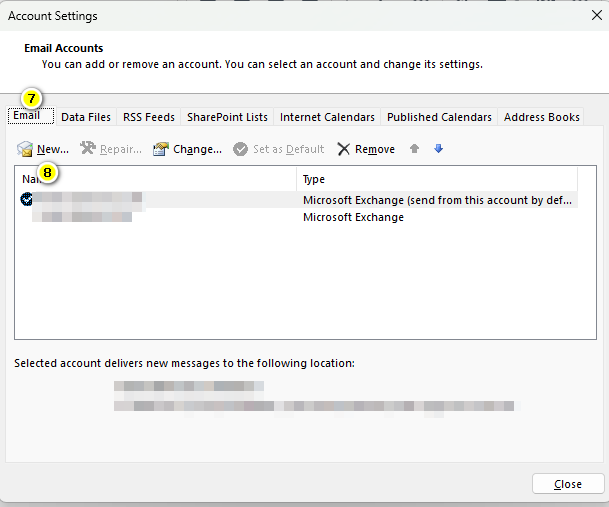
- ไปที่ Email Tab &gt; เลือก New...

![image.png](https://bookstack.wu.ac.th/uploads/images/gallery/2025-08/scaled-1680-/swgimage.png)

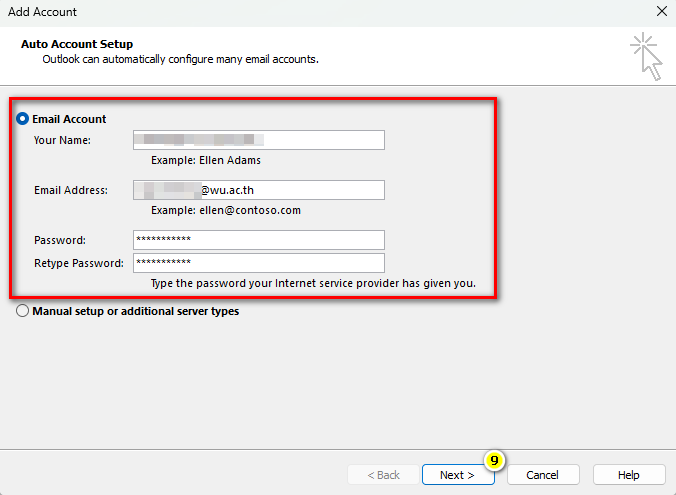
- กรอกข้อมูลตามฟอร์มให้เรียบร้อย เสร็จแล้วกด Next
![image.png](https://bookstack.wu.ac.th/uploads/images/gallery/2025-08/scaled-1680-/AW0image.png)

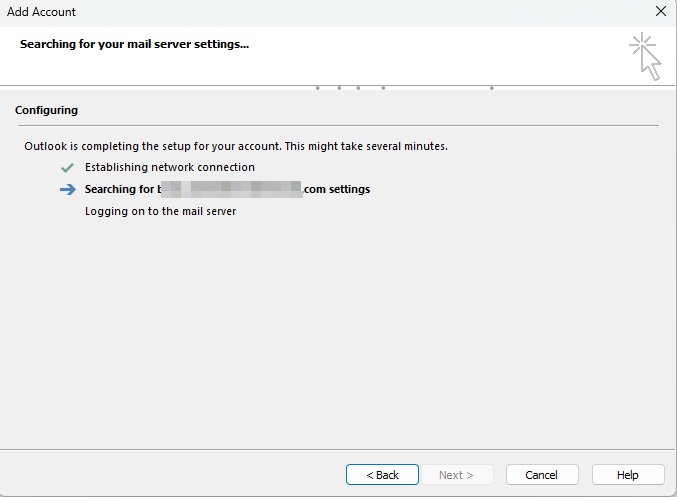
- รอกระบวนการยืนยันตัวตนให้เสร็จเรียบร้อย
![image.png](https://bookstack.wu.ac.th/uploads/images/gallery/2025-08/scaled-1680-/4pDimage.png)

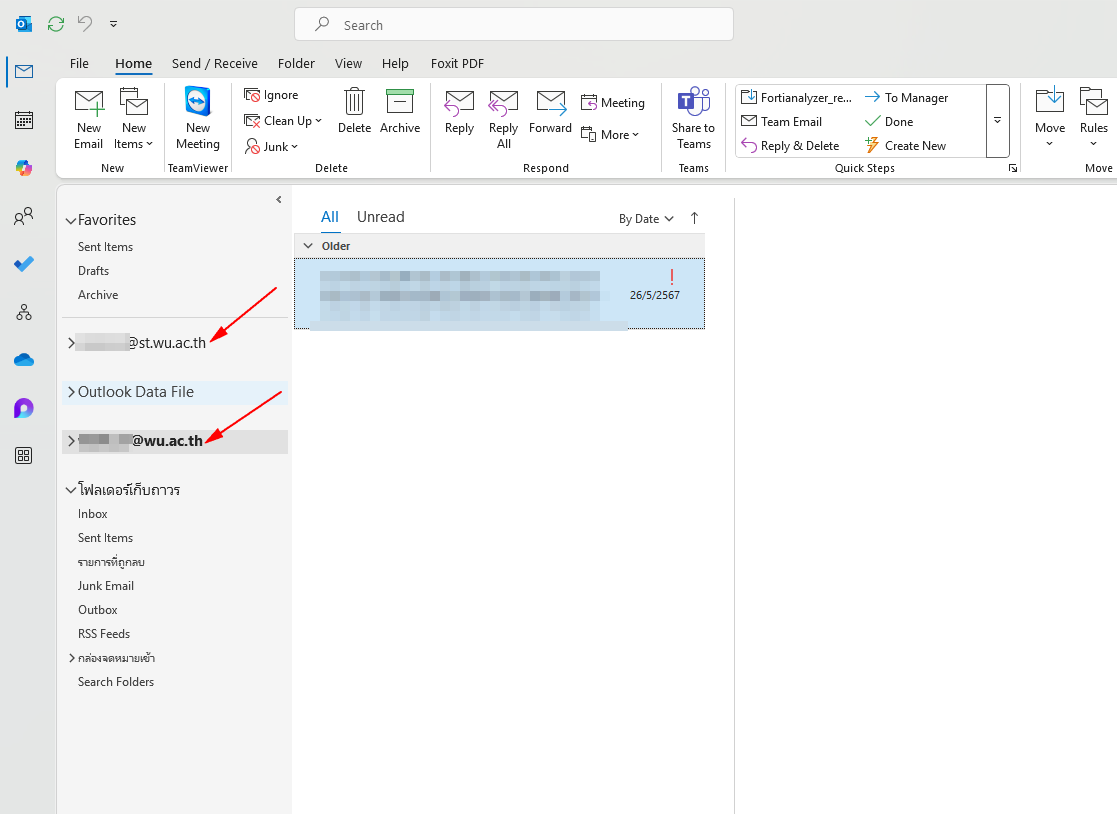
- หากสำเร็จจะขึ้นรายการเมลที่เพิ่มก่อนหน้านี้ดังรูป
![image.png](https://bookstack.wu.ac.th/uploads/images/gallery/2025-08/scaled-1680-/ySGimage.png)

# วิธี Export อีเมล(@wu.ac.th)  เป็น PST File

หลังจากผู้ใช้งานทำการเชื่อมต่ออีเมลผ่านโปรแกรม Outlook เรียบร้อยแล้ว สามารถดำเนินการ Export หรือ Backup อีเมลออกจากระบบเดิมได้ เพื่อเตรียมข้อมูลสำหรับนำไปใช้งานในระบบใหม่ <span style="color: rgb(255, 106, 23);">***Microsoft 365 (News)***</span> ต่อไป

<p class="callout warning">เว็บไซต์ email.wu.ac.th เองไม่มีฟังก์ชัน export โดยตรง ซึ่งต้องใช้ Microsoft Outlook เชื่อมต่อบัญชี แล้ว export ข้อมูลจาก Outlook</p>

<div id="bkmrk-"><div>- ไปที่ File &gt; Open &amp; Export &gt; Import/Export
    
    [![image.png](https://bookstack.wu.ac.th/uploads/images/gallery/2025-07/scaled-1680-/WWlimage.png)](https://bookstack.wu.ac.th/uploads/images/gallery/2025-07/WWlimage.png)

</div></div><div id="bkmrk-%C2%A0%E0%B9%80%E0%B8%A5%E0%B8%B7%E0%B8%AD%E0%B8%81-export-to-a-f"><div>- เลือก Export to a file &gt; กด Next

</div></div>[![image.png](https://bookstack.wu.ac.th/uploads/images/gallery/2025-07/scaled-1680-/WEximage.png)](https://bookstack.wu.ac.th/uploads/images/gallery/2025-07/WEximage.png)

<div id="bkmrk-%E0%B9%80%E0%B8%A5%E0%B8%B7%E0%B8%AD%E0%B8%81-outlook-data-f"><div>- เลือก Outlook Data File (.pst) &gt; กด Next

</div></div>[![image.png](https://bookstack.wu.ac.th/uploads/images/gallery/2025-07/scaled-1680-/6VXimage.png)](https://bookstack.wu.ac.th/uploads/images/gallery/2025-07/6VXimage.png)

<div id="bkmrk-%E0%B9%80%E0%B8%A5%E0%B8%B7%E0%B8%AD%E0%B8%81-root-mailbox-%28">- เลือก root mailbox (รวม Inbox, Sent, etc.) และติ๊ก Include subfolders &gt; Next

</div>[![image.png](https://bookstack.wu.ac.th/uploads/images/gallery/2025-07/scaled-1680-/FCoimage.png)](https://bookstack.wu.ac.th/uploads/images/gallery/2025-07/FCoimage.png)

<div id="bkmrk-%C2%A0%E0%B9%80%E0%B8%A5%E0%B8%B7%E0%B8%AD%E0%B8%81%E0%B8%97%E0%B8%B5%E0%B9%88%E0%B8%88%E0%B8%B1%E0%B8%94%E0%B9%80%E0%B8%81%E0%B9%87%E0%B8%9A%E0%B9%84%E0%B8%9F%E0%B8%A5%E0%B9%8C">  
</div>- เลือกที่จัดเก็บไฟล์ .pst &gt; เลือก Option เป็น "**Replace duplicates with item exported**" &gt; กด Finish

[![image.png](https://bookstack.wu.ac.th/uploads/images/gallery/2025-07/scaled-1680-/zgHimage.png)](https://bookstack.wu.ac.th/uploads/images/gallery/2025-07/zgHimage.png)

- ตั้งค่ารหัสผ่านสำหรับนำไป Import ข้อมูล
    
    [![image.png](https://bookstack.wu.ac.th/uploads/images/gallery/2025-07/scaled-1680-/vMBimage.png)](https://bookstack.wu.ac.th/uploads/images/gallery/2025-07/vMBimage.png)

<p class="callout info">  
ศึกษาการ Export เพิ่มเติมได้จาก Link: [https://www.youtube.com/watch?v=kfCX\_suwTAQ  
  ](https://www.youtube.com/watch?v=kfCX_suwTAQ)[![Export E-Mail.png](https://bookstack.wu.ac.th/uploads/images/gallery/2025-07/scaled-1680-/export-e-mail.png)](https://bookstack.wu.ac.th/uploads/images/gallery/2025-07/export-e-mail.png)  

</p>

<div id="bkmrk--7"></div>

# วิธี Import ไฟล์ .pst ไปยังบัญชีของ Office365

หลังจากที่ผู้ใช้งานได้รับไฟล์ .pst เรียบร้อยแล้ว สามารถนำเข้าไปยังบัญชีอีเมลในระบบใหม่ (Microsoft 365) ได้ 2 วิธี ดังนี้

- - - - **วิธีที่ 1 Import ไฟล์ .pst เข้าสู่บัญชีอีเมลในระบบ Microsoft 365 โดยตรง**
            - **วิธีที่ 2 เปิดไฟล์ .pst เพื่อใช้ในการอ้างอิงประวัติ (Open Outlook Data File)**

---

#####   


##### **วิธีที่ 1 Import ไฟล์ .pst เข้าสู่บัญชีอีเมลในระบบ Microsoft 365 โดยตรง** 

<p class="callout info">จำเป็นต้อง Login บัญชีของ Office365 หลังมีการเปลี่ยนระบบเรียบร้อยแล้ว จึงสามารถ Import อีเมลจากระบบเดิมเข้าไปยังระบบใหม่ได้ โดยเริ่มได้งานตั้งแต่ <span style="text-decoration: underline;">วันที่ 4 สิงหาคม 2568 เป็นต้นไป</span></p>

<div id="bkmrk-%E0%B9%84%E0%B8%9B%E0%B8%97%E0%B8%B5%E0%B9%88-file-%3E-open-%26-"><div>- ไปที่ File &gt; Open &amp; Export &gt; Import/Export

</div></div>[![image.png](https://bookstack.wu.ac.th/uploads/images/gallery/2025-07/scaled-1680-/C2dimage.png)](https://bookstack.wu.ac.th/uploads/images/gallery/2025-07/C2dimage.png)

- เลือก Import from another program or file &gt; กด Next

[![image.png](https://bookstack.wu.ac.th/uploads/images/gallery/2025-07/scaled-1680-/QHGimage.png)](https://bookstack.wu.ac.th/uploads/images/gallery/2025-07/QHGimage.png)

<div id="bkmrk-%E0%B9%80%E0%B8%A5%E0%B8%B7%E0%B8%AD%E0%B8%81-outlook-data-f"><div>- เลือก Outlook Data File (.pst) &gt; กด Next

</div></div>[![image.png](https://bookstack.wu.ac.th/uploads/images/gallery/2025-07/scaled-1680-/MaCimage.png)](https://bookstack.wu.ac.th/uploads/images/gallery/2025-07/MaCimage.png)

<div id="bkmrk-%E0%B9%80%E0%B8%A5%E0%B8%B7%E0%B8%AD%E0%B8%81%E0%B9%84%E0%B8%9F%E0%B8%A5%E0%B9%8C-.pst-%E0%B8%97%E0%B8%B5%E0%B9%88-e">- เลือกไฟล์ .pst ที่ export ไว้ก่อนหน้า &gt; <span style="color: rgb(68, 68, 68);">เลือก Option เป็น "</span>**Replace duplicates with item exported**<span style="color: rgb(68, 68, 68);">" &gt;</span><span style="color: rgb(68, 68, 68);"> กด Finish</span>

</div>[![image.png](https://bookstack.wu.ac.th/uploads/images/gallery/2025-07/scaled-1680-/s6uimage.png)](https://bookstack.wu.ac.th/uploads/images/gallery/2025-07/s6uimage.png)


- ใส่รหัสผ่านที่ตั้งไว้ตอน Export ข้อมูล

[![image.png](https://bookstack.wu.ac.th/uploads/images/gallery/2025-07/scaled-1680-/slTimage.png)](https://bookstack.wu.ac.th/uploads/images/gallery/2025-07/slTimage.png)

<div id="bkmrk-%E0%B9%80%E0%B8%A5%E0%B8%B7%E0%B8%AD%E0%B8%81%E0%B9%82%E0%B8%9F%E0%B8%A5%E0%B9%80%E0%B8%94%E0%B8%AD%E0%B8%A3%E0%B9%8C%E0%B8%9B%E0%B8%A5%E0%B8%B2%E0%B8%A2%E0%B8%97%E0%B8%B2%E0%B8%87">- <span style="color: rgb(68, 68, 68);">เลือกโฟลเดอร์ปลายทางในบัญชี Office365 (Inbox หรือสร้างโฟลเดอร์ใหม่) &gt; </span><span style="color: rgb(68, 68, 68);">ติ๊ก Include subfolders &gt; </span><span style="color: rgb(68, 68, 68);"> กด Finish เพื่อเริ่มนำเข้า</span>

</div>[![image.png](https://bookstack.wu.ac.th/uploads/images/gallery/2025-07/scaled-1680-/O6Uimage.png)](https://bookstack.wu.ac.th/uploads/images/gallery/2025-07/O6Uimage.png)

<div id="bkmrk--7"></div><div id="bkmrk--8"></div><div id="bkmrk--9"></div><div id="bkmrk--10"></div><div id="bkmrk--11"></div><div id="bkmrk--12"></div><div id="bkmrk--13"></div><div id="bkmrk--14"></div><div id="bkmrk--15"></div><div id="bkmrk--16"></div><div id="bkmrk--17"></div><div id="bkmrk--18"></div><div id="bkmrk--19"></div><p class="callout info">ศึกษา Import เพิ่มเติมได้จาก Link: [https://www.youtube.com/watch?v=V-V8wBtctlQ  ](https://www.youtube.com/watch?v=V-V8wBtctlQ)[![_Import E-Mail.png](https://bookstack.wu.ac.th/uploads/images/gallery/2025-07/scaled-1680-/import-e-mail.png)](https://bookstack.wu.ac.th/uploads/images/gallery/2025-07/import-e-mail.png)</p>

---

##### **วิธีที่ 2 เปิดไฟล์ .pst เพื่อใช้ในการอ้างอิงประวัติ (Open Outlook Data File)**

#####   


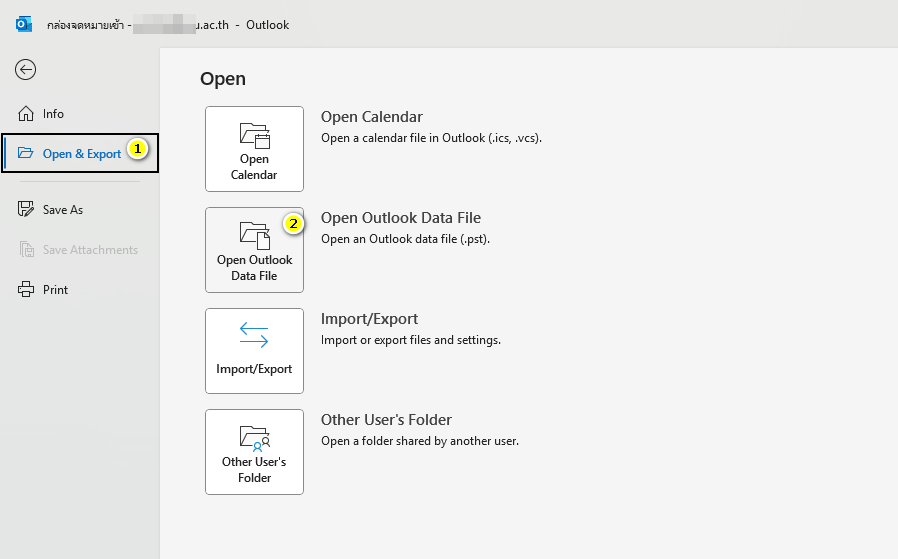
- ไปที่ File &gt; Open &amp; Export &gt; เลือก Open Outlook Data File

[![image.png](https://bookstack.wu.ac.th/uploads/images/gallery/2025-08/scaled-1680-/A0Dimage.png)](https://bookstack.wu.ac.th/uploads/images/gallery/2025-08/A0Dimage.png)

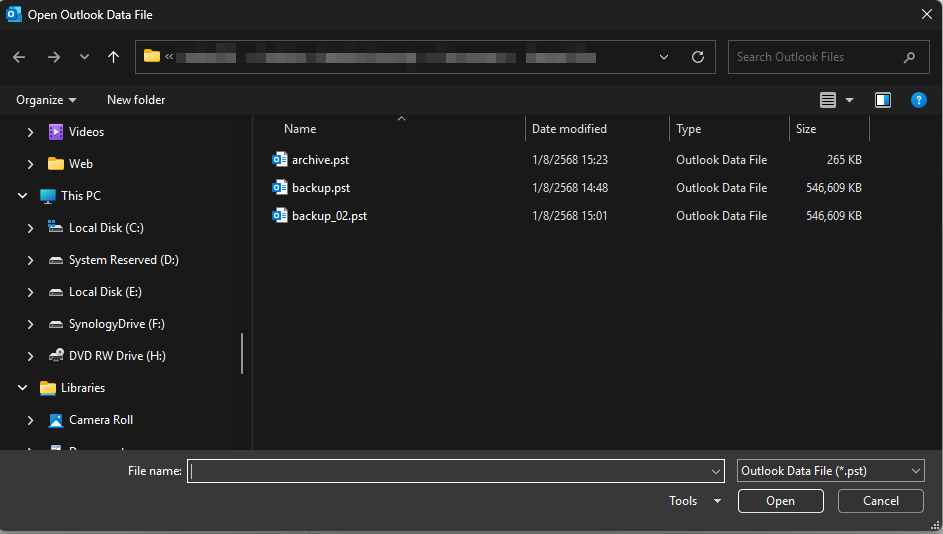
- มีหน้าต่างแสดงให้เลือกไฟล์ .pst สำหรับ Import เข้าระบบ และใส่รหัสผ่านที่ตั้งไว้ตอน Export File .pst
![image.png](https://bookstack.wu.ac.th/uploads/images/gallery/2025-08/scaled-1680-/idGimage.png)

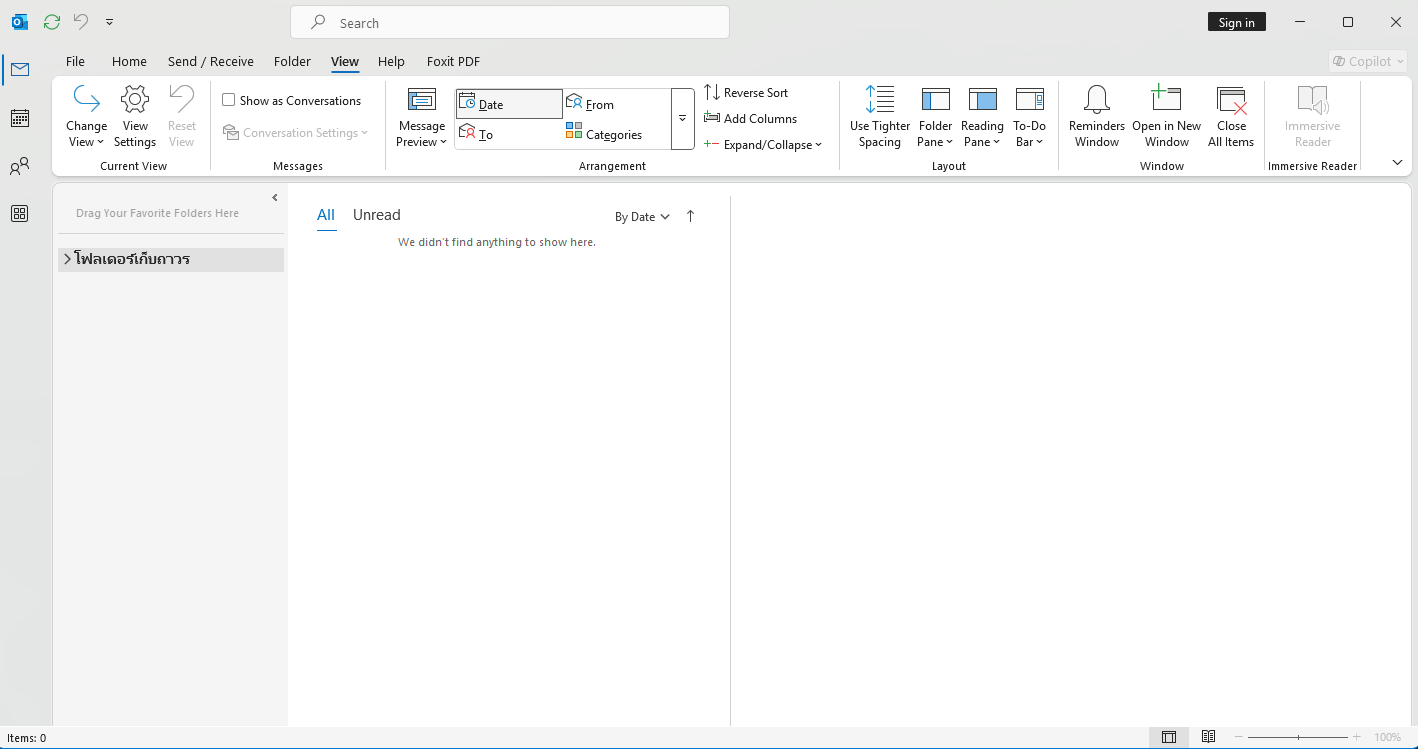
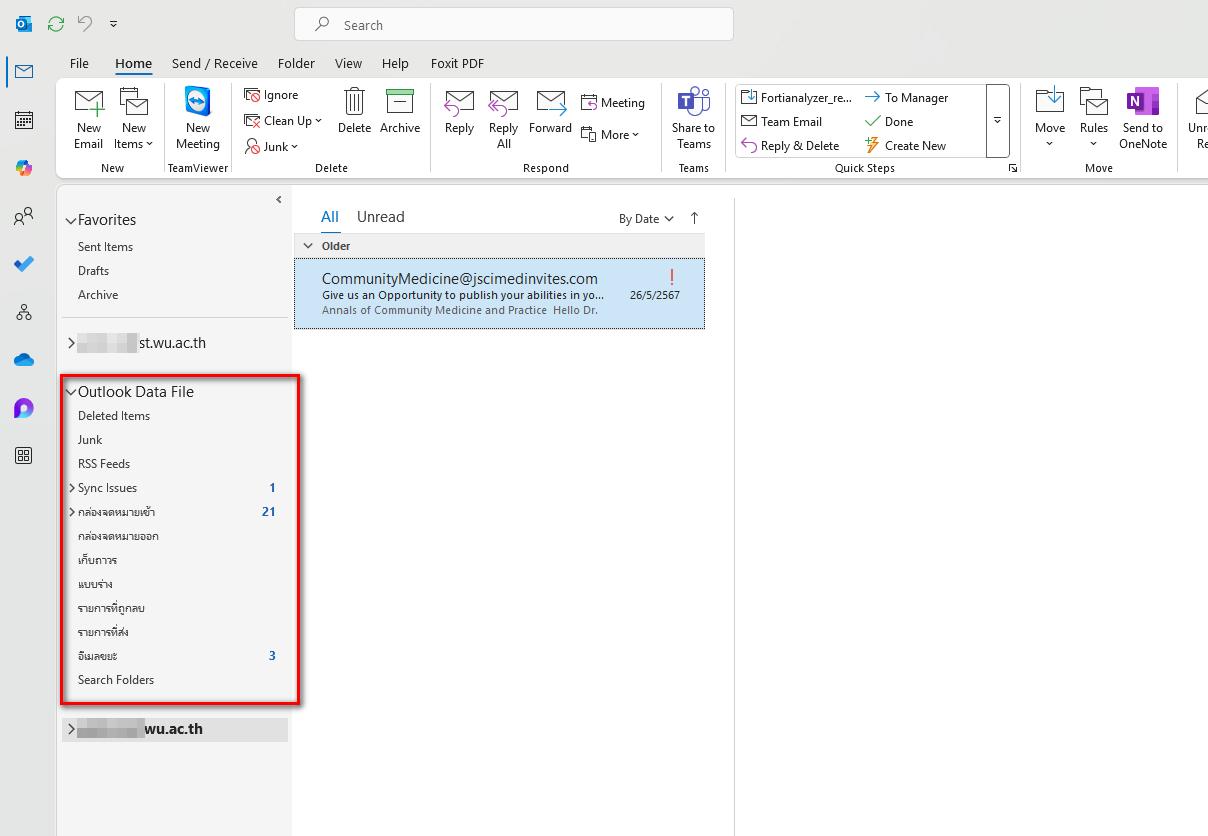
- หากสำเร็จแล้วจะมีรายการอีเมลที่แสดงในเมนู Outlook Data File ดังรูป
![image.png](https://bookstack.wu.ac.th/uploads/images/gallery/2025-08/scaled-1680-/jFzimage.png)